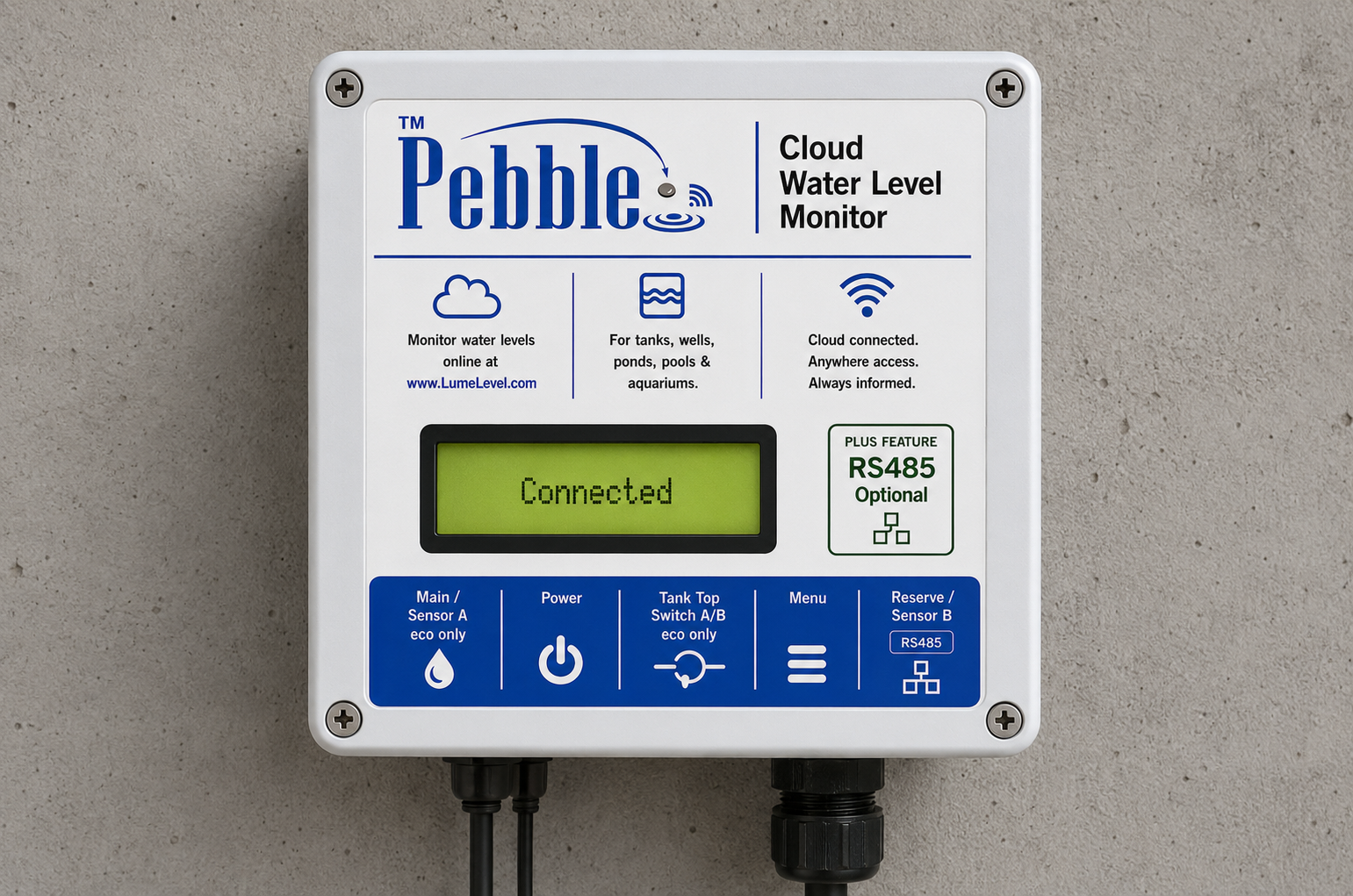
Use this guide after the portal setup has been prepared. It covers field installation, device connection, sensor testing, troubleshooting, and final close-out.
Link Code is visible and available to the installer.
Physical site timezone has been selected.
Main Tank is linked or ready to be linked.
Main Tank Sensor Type is selected correctly.
Optional items that must be done first if used
Reserve Tank setup is complete if the installation uses a reserve tank.
Tank Objects / Additional Measurements are configured if the tank shape requires them.
Manual Level Entry is disabled if a Reserve Tank is being used.
For RS485 Pebble models, sensor addresses and the M12 Sensor Bus v1 component/topology plan are known.
Important:
The Monitoring Profile is the portal record. The Pebble Monitor is the physical hardware. The Link Code connects the physical unit to the portal record.
Field workflow
Recommended install sequence
1
Confirm the portal is ready.
Do not start the physical setup without the Link Code and tank configuration.
2
Plan the physical installation.
Choose sensor, controller, cable and connector route, antenna, and power locations before drilling final holes. For RS485 Sensor Bus v1, include the M12 trunk, T-distributor, sensor-drop, adapter, and far-end terminator locations.
3
Temporarily power and test position.
Connect enough to test Wi-Fi signal and sensor direction before final mounting.
4
Open Pebble setup mode.
Press and release the menu button, connect to Pebble-xxxxxx, and open 192.168.4.1.
5
Connect to site Wi-Fi and use the Wi-Fi Meter.
Confirm the planned mounting location has reliable signal before tightening everything down.
6
Link device and complete sensor setup.
Enter the Link Code, choose sensor settings, test readings, and save settings.
7
Confirm the portal receives the expected reading.
Check level value, time, sensor type, and tank relationship before leaving the site.
8
Finish Setup.
Close the temporary setup Wi-Fi and return the device to normal runtime mode.
Installer Safety
Know when to stop, refuse, or escalate the work
Safety boundary:
LumeLevel Certified Installer training confirms competence with LumeLevel equipment and procedures. It does not replace electrical, plumbing, confined-space, working-at-height, hazardous-location, licensing, permit, or other trade and site-specific qualifications.
Before starting work
Assess access, tank condition, electrical hazards, pumps, moving equipment, fall hazards, fluid type, ventilation, lighting, and the work area before beginning the installation.
Confirm that required permissions, permits, trade qualifications, site inductions, and safety controls are in place for the work being performed.
Use PPE and site controls appropriate to the actual hazards and local requirements. LumeLevel certification does not determine the PPE required for a particular site.
Isolate pumps and electrical equipment when they could create a hazard during drilling, wiring, sensor installation, inspection, or other work around the tank.
Avoid tank entry
Plan the installation so tank or cistern entry is avoided whenever reasonably practicable.
Do not enter a tank, cistern, chamber, pit, or other confined space unless the work is independently authorized and the people performing it have the required confined-space training, equipment, permits, supervision, and rescue provisions.
LumeLevel Certified Installer training is not confined-space-entry certification.
Never enter or continue work where the atmosphere, structural condition, access, or other site condition is unknown or unsafe.
Application limits
Standard LumeLevel installation guidance is for suitable non-flammable liquid applications and compatible monitoring environments.
Do not treat standard LumeLevel hardware or this installation guide as approval for fuels, volatile solvents, explosive atmospheres, hazardous locations, or pressurized vessels.
Applications outside the standard installation scope require separate technical qualification of the sensor, hardware, enclosure, wiring method, environment, and applicable regulations before work proceeds.
If the fluid, atmosphere, vessel type, or installation environment is uncertain, stop and obtain clarification before installing or powering equipment.
Stop-work rule
Stop, refuse, or escalate the job when the work cannot be performed safely, when required controls are missing, or when the requested work is outside your competence or authorization.
Do not bypass a safety control, required permit, isolation step, protective device, or site rule in order to complete a LumeLevel installation.
Do not represent an installation as commissioned while a safety issue, unresolved wiring fault, unreliable reading, incorrect configuration, or other material problem remains open.
Document unresolved issues and tell the customer what must be corrected or independently assessed before the installation can be completed.
Installer responsibility:
The installer remains responsible for safe work practices, tools, PPE, insurance, employees and subcontractors, required trade qualifications, permits, workmanship, and compliance with local law and site rules.
Hardware Installation
Choose model and confirm the package
The hardware steps change depending on whether this is eco1, eco2, or RS485 Pebble.
Pebble eco1 Main + reserve direct ultrasonic
Ultrasonic sensor Direct sensor connection
Confirm included
Pebble controller
2 direct-connect ultrasonic sensors included
Sensor cables / extensions if supplied
Power supply or solar kit
Tank-top switch if included
Portal match
Main Tank must be configured as having a reserve. Main Tank is Sensor A / reading 1. Reserve Tank is Sensor B / reading 2.
RS485 sensor choice
Pebble Eco 2
2 tanks total1 main + 1 reserveEco 2 + Plus sensor
Eco 2 gets the Eco 2 + Plus sensor family; Plus keeps expandable capacity
Pebble Eco 2 RS485 main + reserve monitoring
Select RS485 sensor type
Ultrasonic sensor
Ultrasonic • RS485 version
Use the RS485 version. Connect it to LumeLevel RS485 Sensor Bus v1 through the approved M12 4-pin A-coded interface or sensor adapter. Install the removable 120 Ω terminator only at the final trunk-out port.
Eco 2 is best for one main tank + one reserve tank using RS485 sensors. Pebble Plus is best when the site needs up to 3 main tanks + 3 reserve tanks.
RS485 sensor choice
Pebble Plus
Up to 6 tanks3 main + 3 reserveRS485 sensor choice
Eco 2 is best for one main tank + one reserve tank using RS485 sensors. Pebble Plus is best when the site needs up to 3 main tanks + 3 reserve tanks.
RS485 Pebble RS485 bus / Eco 2 and Plus sensor installation
Select RS485 sensor type
Ultrasonic sensor
Ultrasonic • RS485 version
Use the RS485 version. Connect it to LumeLevel RS485 Sensor Bus v1 through the approved M12 4-pin A-coded interface or sensor adapter. Install the removable 120 Ω terminator only at the final trunk-out port.
The portal sensor type and physical sensor type must agree. If a submersible sensor is used, the portal tank must be set as Submersible.
Hardware rule: Plan the cable route, controller location, and Wi-Fi/antenna location before drilling final holes.
Physical work
Hardware installation steps
Use these accordions as the physical field checklist. Only open the sections that apply to the installation.
Choose a controller location before final mounting. The location should balance sensor cable length, service access, power, and reliable communication.
Close enough to the tank for clean cable routing.
Accessible for service after installation.
Protected from direct spray, flooding, and physical damage.
Not mounted directly against a metal tank or metal wall where possible.
Away from pumps, dense wiring, large metal surfaces, and large water mass where possible.
Use the Wi-Fi Meter before final mounting: Temporarily power the unit, connect to the site Wi-Fi, and check the Wi-Fi Meter. Target -75 dBm or better where possible. Below -80 dBm should be treated as unreliable.
Optional external antenna
Use when the enclosure location gives weak signal or is near metal, water mass, pump rooms, or thick walls.
Mount the antenna in the clearest practical location.
Keep it vertical and away from metal where possible.
Keep coax short, avoid sharp bends, and weather-seal penetrations.
Use the Wi-Fi Meter to compare locations before final tightening.
Pebble ECO 1 — Mount Your Ultrasonic Sensor
These mounting options are for Pebble ECO 1. Choose the method that fits your tank. Select a picture to enlarge it.
Scope:
ECO 1 uses direct-connect ultrasonic sensors. ECO 2 uses RS485 sensors. Follow the RS485 sensor guide for ECO 2, including its wiring and sensor clearance requirements. These pictures show ECO 1 mounting methods. Point the sensor straight down.
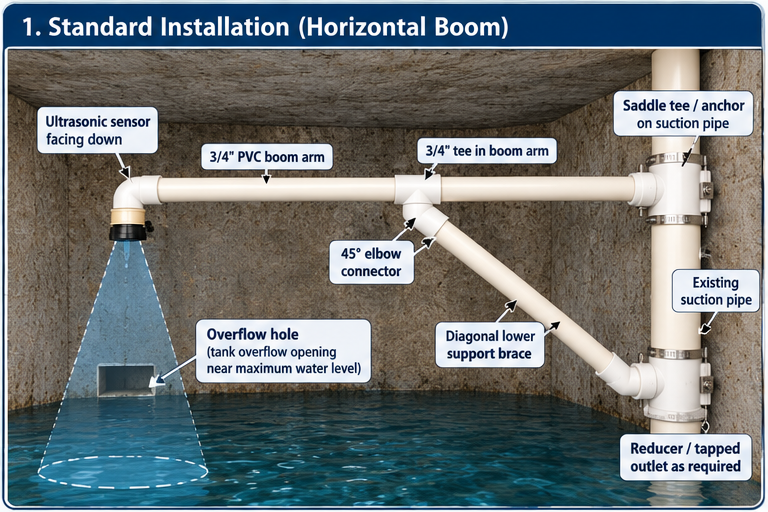
1. Mount to an existing suction pipe
Attach a 3/4-inch PVC arm to the existing suction pipe using a saddle clamp. If the arm is long, add a sloping support below it. Do not drill or cut the suction pipe.
Mounting checklist
Check that the suction pipe is sound and there is room for the support.
Attach the saddle clamp around the pipe. Do not open the pipe.
For a longer arm, add a tee and a sloping support with two 45° elbows.
Place the sensor over clear water. Check that the arm is firm and does not sag.
2. Raise the sensor when needed
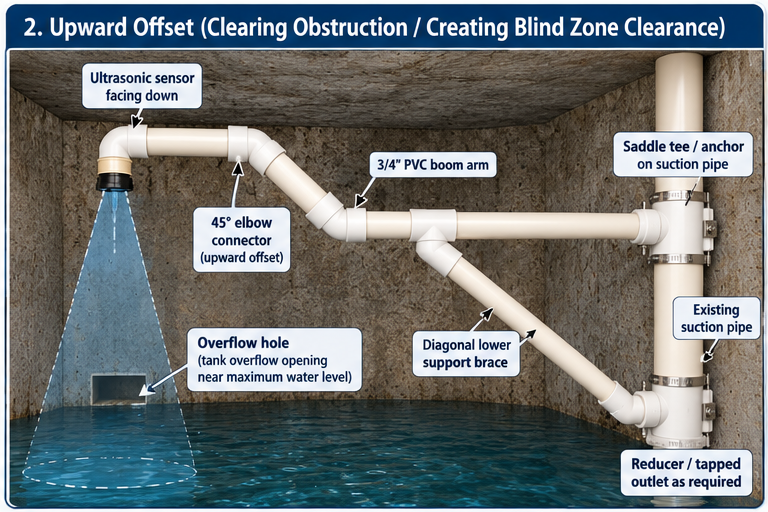
Use two 45° elbows to raise the end of the PVC arm when the sensor needs more room above the water or around an obstacle. Support longer arms.
Mounting checklist
Make sure the raised arm does not touch the tank roof.
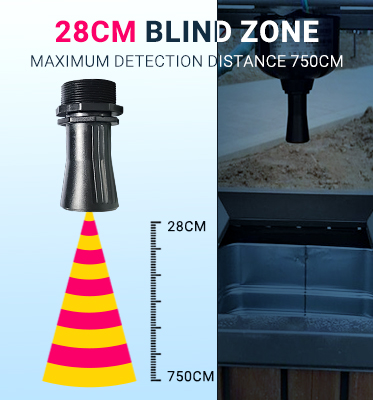
Keep the sensor above the highest water level, with at least the minimum distance required by the sensor maker.
Make sure the sensor at the end points straight down.
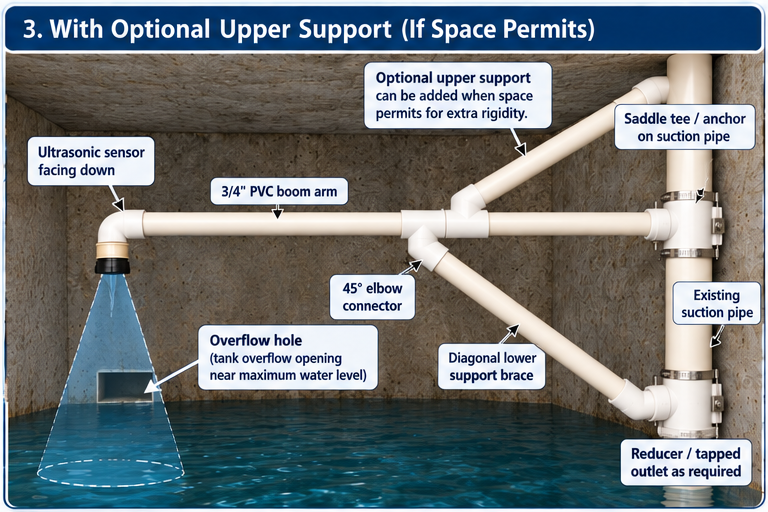
3. Add a support above the arm
If there is enough space above the arm, add a sloping support from the arm to a firm anchor. Make sure both ends are secure.
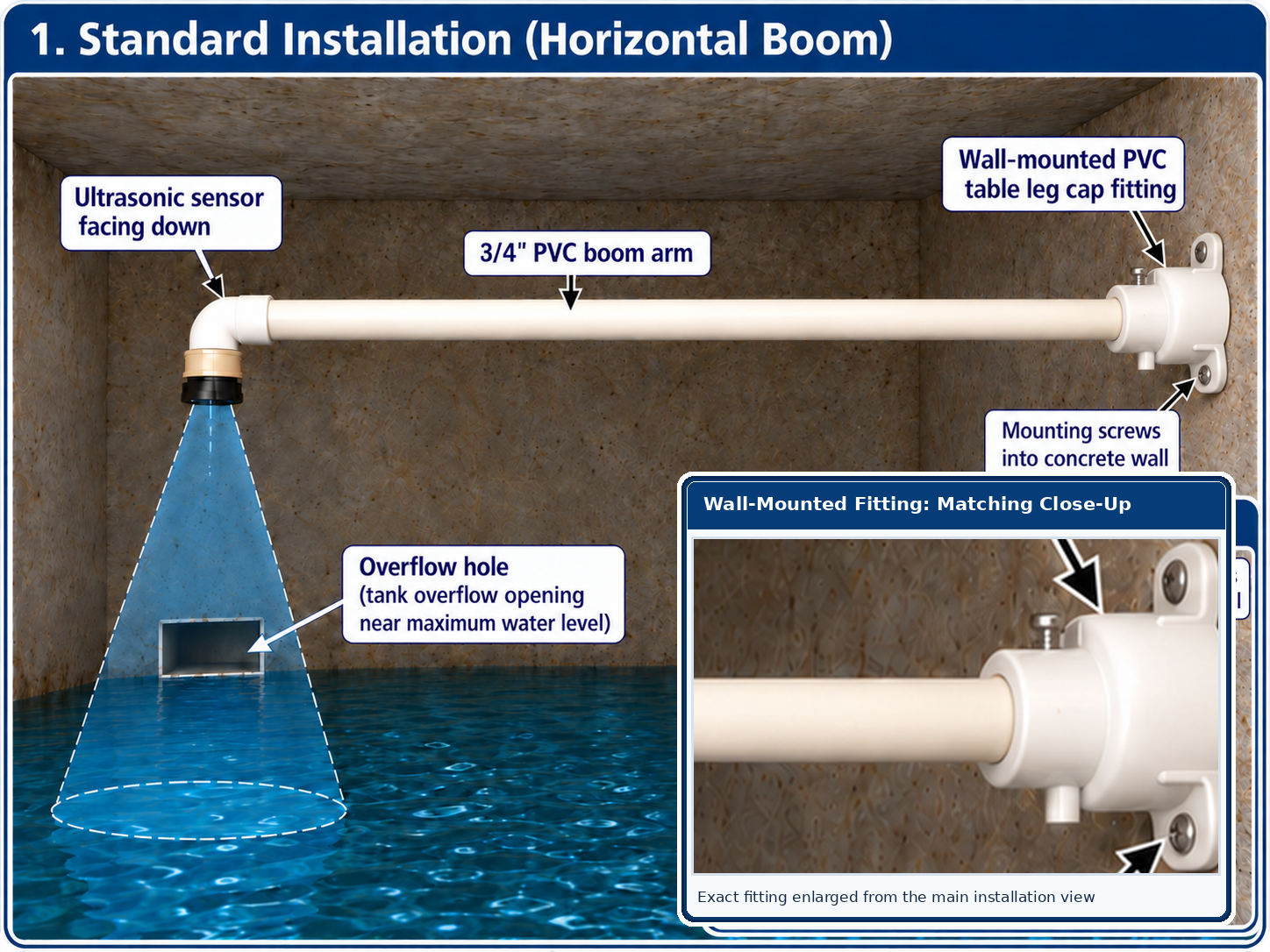
4. Mount the arm to the concrete wall
If the suction pipe cannot be used, fix a PVC table-leg cap to a sound concrete wall. Use suitable concrete screws and a removable screw to hold the arm in place.
Alternative fitting
A standard PVC end cap may also work with a suitable wall bracket. Make sure the arm can be removed for service.
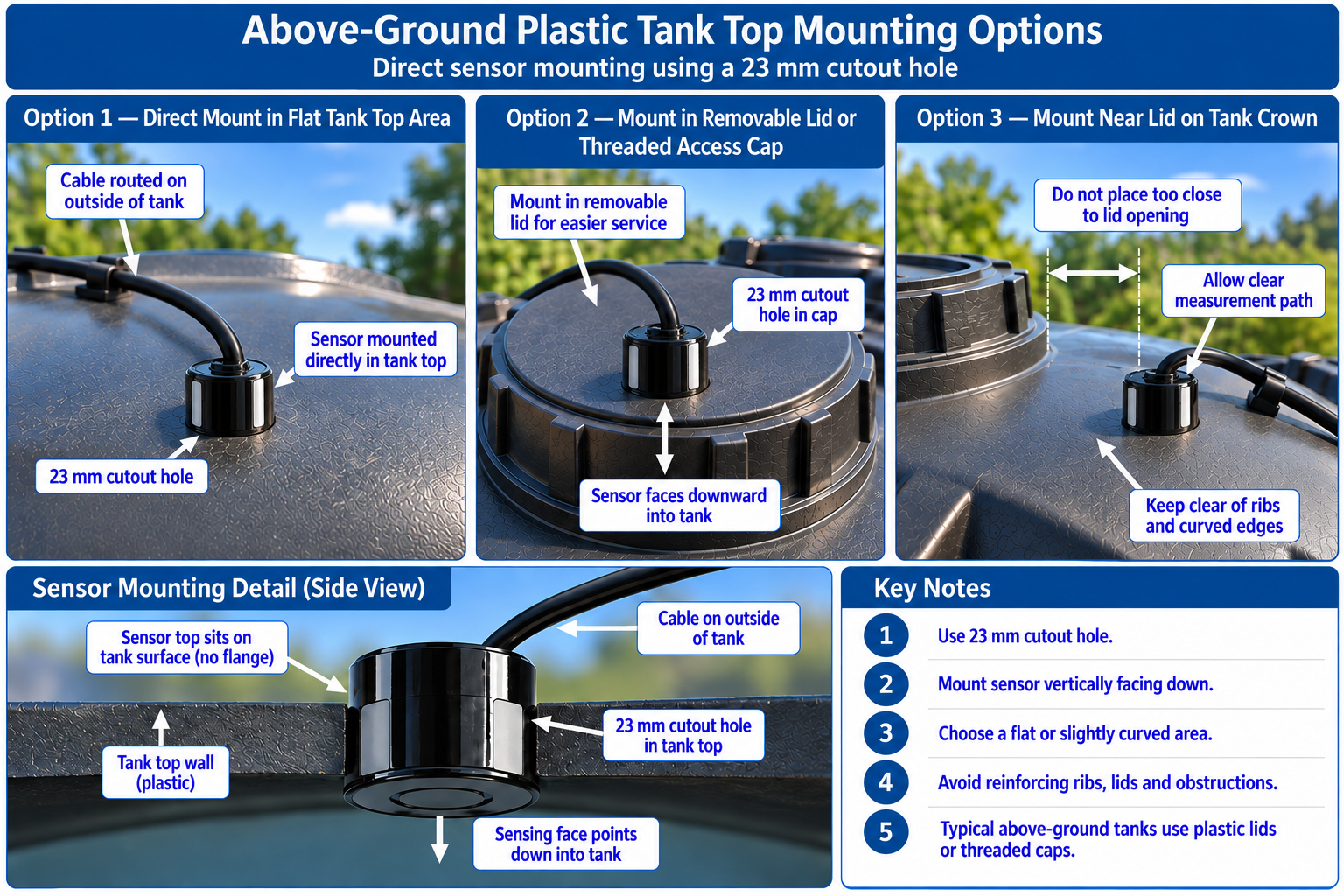
5. Fit the sensor on a cylindrical tank
For the tested ECO 1 ultrasonic sensor, use a 23 mm hole in a suitable clear, flat area. The sensing face must extend inside the tank. Keep the cable outside. Do not assume this opening fits a different sensor.
Positioning checklist
Keep away from raised ribs, lid threads, walls and openings.
Use the retention method tested with the supplied ECO 1 ultrasonic sensor; do not assume it has a separate flange.
Leave enough cable for the lid to open without pulling or pinching it.
6. Bring the sensor cable out safely
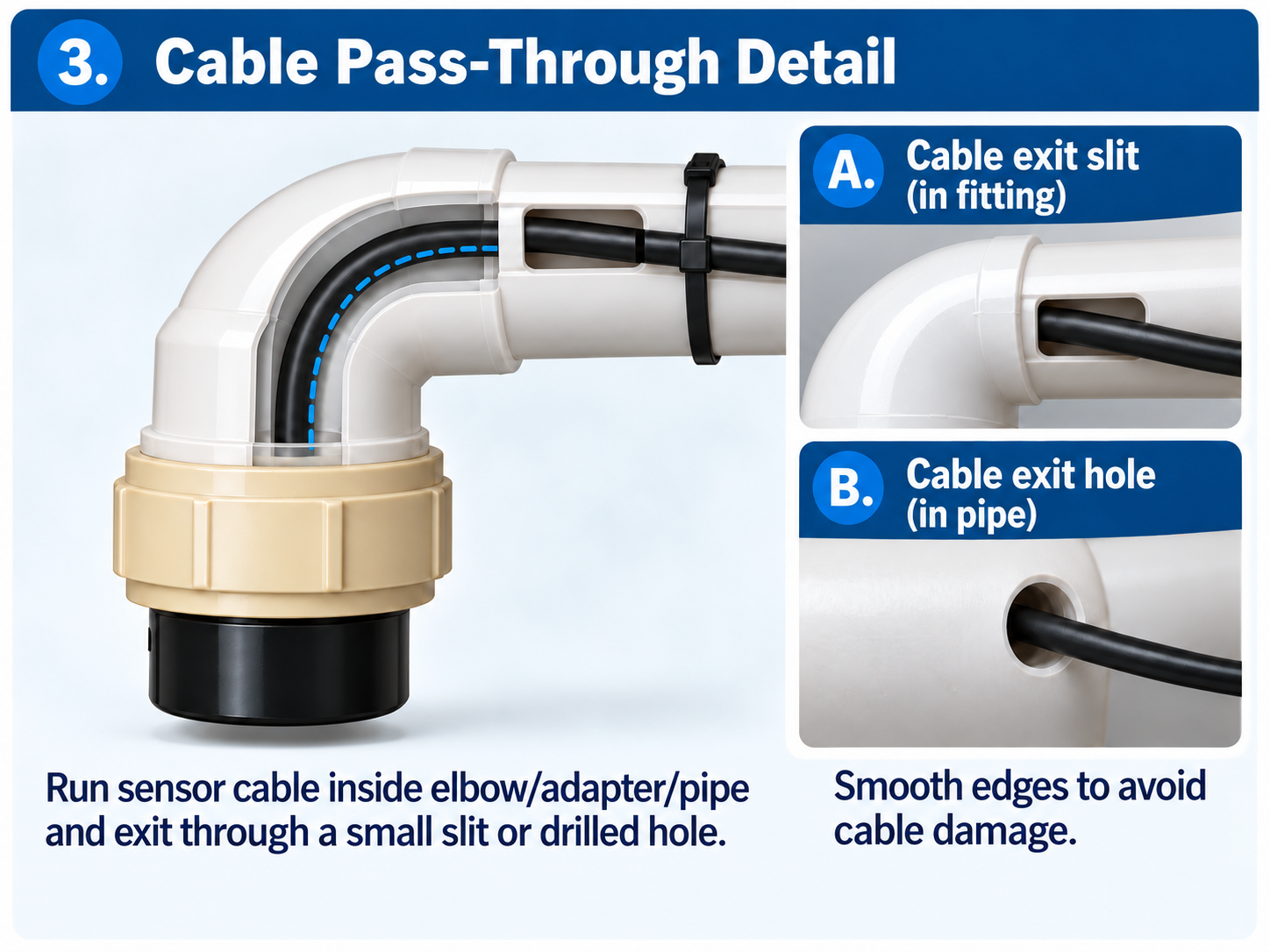
Run the cable through the PVC elbow and arm. Bring it out through a smooth, long slot or a protected round hole. Make sure the cable cannot rub, pinch or pull tight.
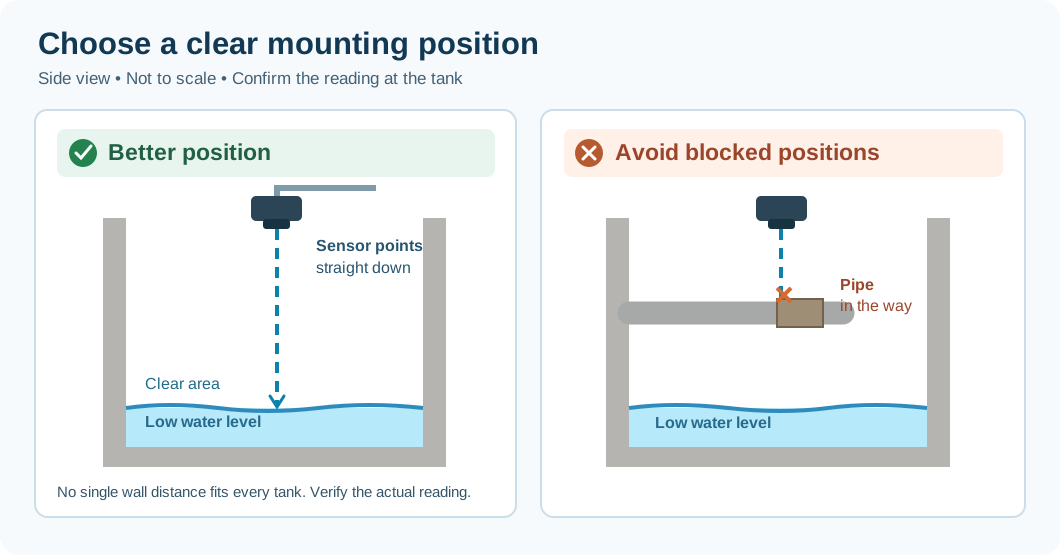
Find a clear spot for the sensor
The picture shows where to look for obstacles. It does not set a fixed wall distance or a required tank width.
Simple rule:
Mount the ECO 1 ultrasonic sensor facing straight down above an open area of water. Keep away from walls, pipes, braces, steps and the water inlet where possible.
Check the position before finishing
Choose a place with a clear downward view to the water, including at the lowest water level you want to monitor. If you need readings close to empty, consider the view toward the tank bottom.
Secure the mount so the sensor stays level and points straight down. Keep the sensor above the highest water level by at least the minimum distance specified for your sensor.
Compare the Pebble reading with a measured water level. Check again at a lower level if possible.
If readings are unstable or incorrect, try a better position. Do not rely on a fixed wall-distance number to decide whether the tank is suitable.
Still cannot get a reliable reading?
For a narrow, deep or obstructed tank, choose a compatible submersible level sensor or an appropriate RS485 sensor with a supported Pebble model or input module. ECO 1 does not directly connect to RS485 sensors.
Why there is no fixed wall-clearance table:
A quoted sensor beam angle does not, by itself, establish a reliable minimum distance from a tank wall. The installed sensor must be checked with real readings before the job is approved.
Before you finish
Make sure the arm and its supports are tight and cannot twist or sag.
Check that the sensor has a clear measuring area down to the lowest water level you want to monitor.
Check the cable where it leaves the pipe and where it is supported.
Check that the Pebble and portal show sensible water-level readings at the installed tank depth.
Record the sensor height and complete the installation checks.
Older installation video (for reference only; not current Pebble wiring): View video
Safety: Do not enter a cistern without the required training, equipment and approvals. Do not cut or drill an active suction pipe. Isolate electrical equipment before wiring.
Optional PVC L-bracket — RS485 ultrasonic sensors
For Pebble ECO 2 and Pebble Plus with supported RS485 A01 or A02 ultrasonic sensors. Not for the ECO 1 Pebble-JSN direct-connect ultrasonic sensor or submersible probes.
Illustrated PVC mounting supports you can reuse
Choose the support first, then attach your selected A01 or A02 sensor with its compatible PVC L-bracket arrangement. These structural methods can be adapted from the ECO 1 gallery where the tank geometry permits.
Mount on an existing suction pipe
Use saddle tees and a supported horizontal PVC boom without cutting or penetrating the suction pipe. Verify the existing pipe can safely carry the extra load.
Mount the PVC arm to a suitable wall
Use an appropriately secured, serviceable wall mounting where the tank construction allows it. Avoid waterproofing damage and unsafe drilling.
Add an upward offset to clear obstructions
Raise the supported boom where needed to clear an obstruction or provide sensor headroom. Keep the final sensor pointing straight down.
Reinforce a longer boom with an upper brace
Consider an additional upper brace where access and geometry allow, so the arm cannot sag, rotate or vibrate in service.
Use a suitable cylindrical tank top
A tank-top location may be suitable for an RS485 ultrasonic sensor, but size the opening and retention for the actual A01/A02 hardware. Do not assume the ECO 1 Pebble-JSN 23 mm opening is suitable.
Illustration limitation: the examples above show the ECO 1 Pebble-JSN ultrasonic sensor. Reuse only the PVC support concepts, not its sensor attachment, cable-exit detail or hole dimensions. The A01/A02 instructions below govern the RS485 sensor end.
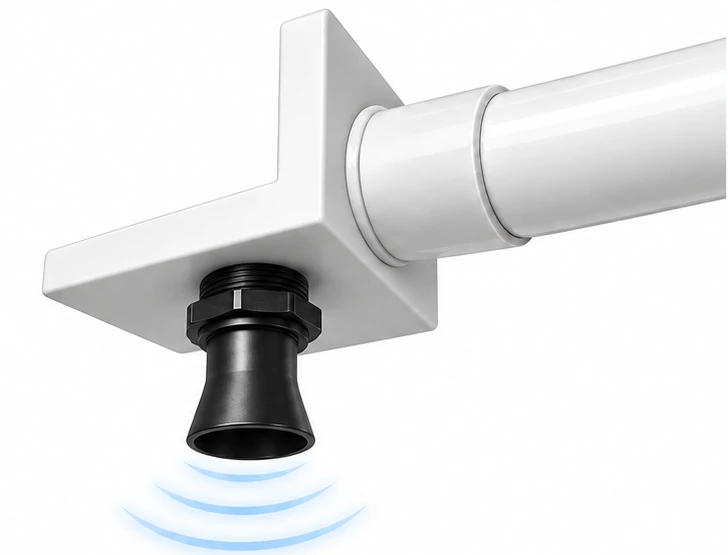
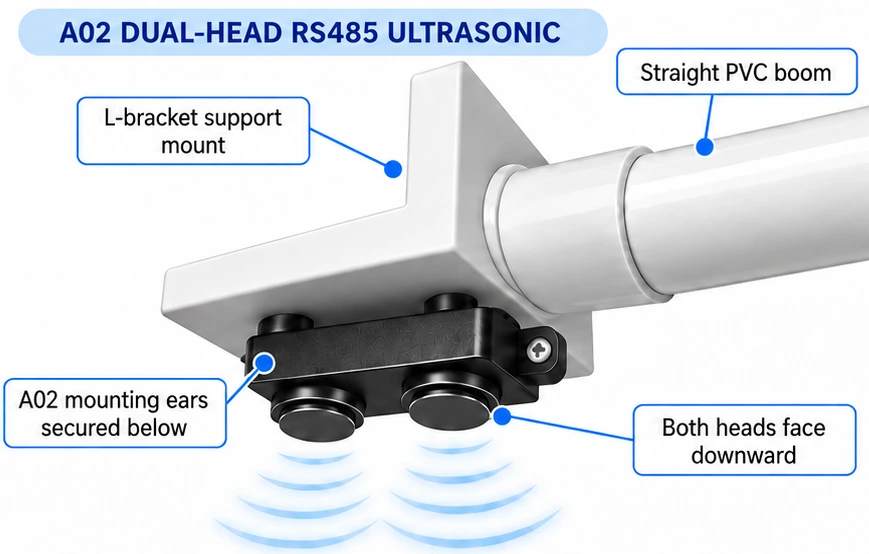
PVC boom to L-bracket: straight connection — Keep the 3/4 in PVC boom straight into the bracket through a suitable straight coupling. Do not substitute a 90-degree elbow at the boom end.
A01: threaded mounting
Pass the compatible A01 threaded neck through an appropriately sized supported bracket opening and secure it with the correct retaining hardware. Check the supplied sensor before drilling; do not assume thread, nut or hole dimensions.
A02: mounting-ear attachment
Secure the A02 mounting ears beneath the bracket using appropriate corrosion-resistant fasteners. Keep both transducers facing straight down and ensure the fasteners and bracket do not obstruct either sensing face.
Position and clearance checks
Keep the sensor level and pointing straight down. Avoid walls, pipes, braces, inlet flow and splash zones; maintain the manufacturer-required blind-zone clearance above the highest expected liquid level.
Support the mounting arm, cable and M12 adapter independently. Keep strain off the sensor and its connector; prevent abrasion and water entry at cable routing points.
Follow the approved M12 RS485 Sensor Bus v1 connector, drop, address and far-end termination arrangement. Do not splice into or modify the trunk.
Before commissioning, verify mounting rigidity, sensor orientation, the selected sensor type and live readings at suitable tank levels.
Mechanical validation required: Confirm sensor threads or mounting-ear spacing, bracket material, fastener arrangement and clearances against physical samples. Illustrations show the mounting concept, not a certified bracket kit.
Submersible or other RS485 sensor selected
The PVC L-bracket is only for supported A01/A02 RS485 ultrasonic sensors. For a submersible sensor, follow Step 4 and the sensor-specific mounting and pressure-reference instructions.
Mount the sensor above the water and aim it straight down.
Avoid tank walls, ladders, pipes, inlet flow, foam, turbulence, and internal obstructions.
Keep the sensor face clear.
Record the sensor height and confirm it matches the portal tank setup.
Weatherproof the tank-top connection and provide strain relief.
Which sensor? Pebble ECO 1 uses direct-connect ultrasonic sensors. Pebble ECO 2 uses RS485 sensors. Follow the RS485 sensor and wiring instructions for ECO 2. Main is Sensor A / reading 1; Reserve is Sensor B / reading 2.
Ultrasonic sensor
Cable / connector support
Support and protect the sensor cable so its connector, M12 coupling, or approved sensor adapter is not carrying cable weight or pull.
Lower the sensor into the water so the sensing end is near the bottom reference point.
Keep the sensor off heavy sludge, sand, or debris where possible.
Secure the cable so the sensor cannot swing into a wall, pump, ladder, or inlet.
Do not coil excess cable tightly in the wet area. Secure extra cable in a dry, serviceable location.
Portal match: When using a submersible sensor, the portal tank Sensor Type should be Submersible. High Water Overflow is treated as the full/usable level and Sensor Height is handled accordingly.
Cable path
Cable exits tank area.
Cable continues through the approved connector, interface, or service housing for the selected installation. Sensor Bus v1 trunk connections remain within the M12 connector system.
Support the cable so connector bodies, sensor adapters, and enclosure entries do not carry cable weight or pull.
Route cable to the Pebble controller.
Use strain relief at controller enclosure entry.
Rules
Do not let the cable hang from solder joints or connectors.
Use strain relief at every enclosure entry.
Do not leave exposed joins. Sensor Bus v1 trunk connections must remain within the approved M12 connector system.
Use drip loops where exposed to weather.
Avoid sharp bends, moving tank parts, and pinch points.
Concrete Tank Top Switch Installation
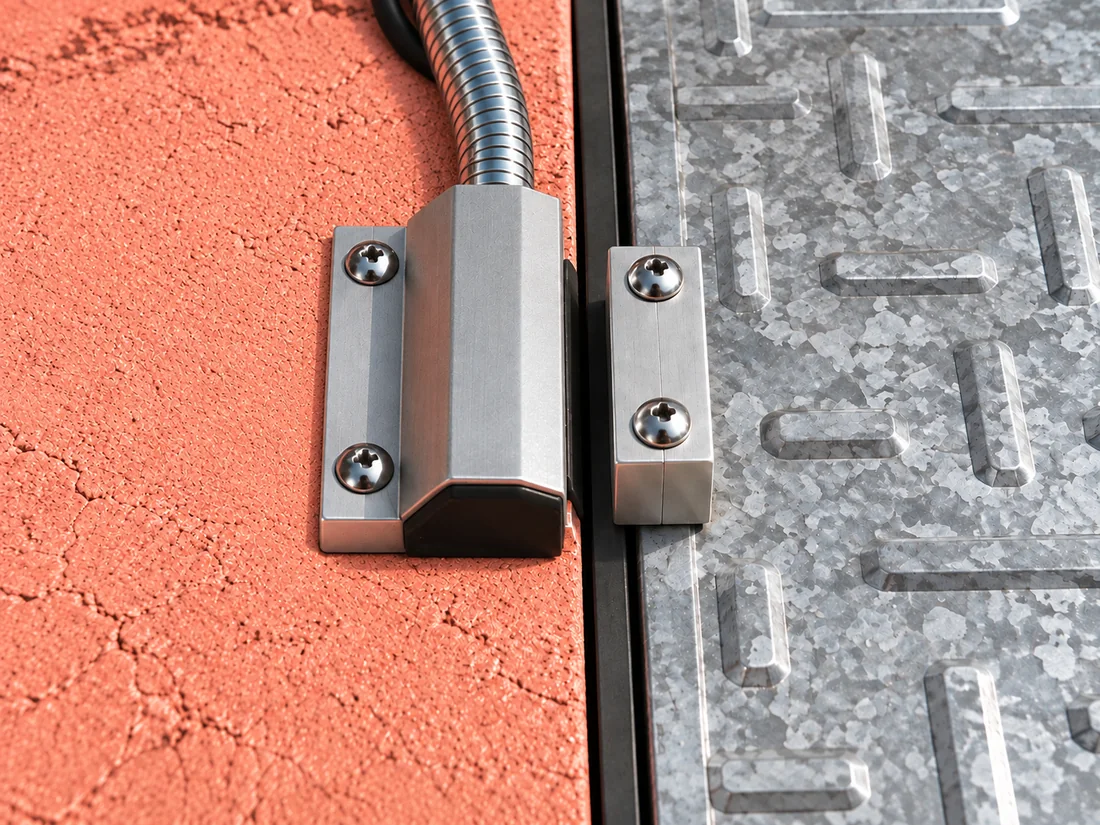
Optional: Use a heavy-duty magnetic switch to check whether the tank cover is open or closed. Install it only with a Pebble model that supports a tank-top switch input or a compatible RS485 switch module. This switch does not measure water level.
How to mount the switch
Fix the larger wired switch to the concrete beside the cover. Use suitable screws and anchors.
Fix the smaller magnet to the metal cover.
Line up the switch and magnet across the gap. Keep the spacing within the switch maker’s allowed distance.
Run the cable through protective conduit into the far end of the wired switch. Keep the cable clear of the moving cover.
Open and close the cover. Make sure it moves freely and the switch changes state every time.
Recommended N.C. switch setup
Choose the switch contacts that are connected when the cover is closed. This is called a closed loop and is usually marked N.C. Check with a meter rather than relying only on the label.
Cover closed: Circuit connected — show Closed / Secure.
Cover open: Circuit disconnected — show Open / Inspect.
Cable broken or unplugged: Circuit disconnected — show Open / Inspect.
A broken wire therefore calls for inspection instead of showing the cover as safely closed. A simple two-wire contact cannot detect every cable fault, such as a short circuit.
Check the switch before you finish
With the switch cable disconnected from the input and power isolated, close the cover. Check with a meter that the two switch wires have continuity.
Open the cover. The meter should show no continuity.
Connect the switch to a supported input on the installed Pebble model or RS485 switch module. Set the input type so the display reads Closed with the cover shut and Open with it raised.
With the cover closed, isolate power before disconnecting one switch wire at a safe service point. Restore power only when safe and check that the display shows Open / Inspect. Isolate again before reconnecting; then confirm Closed.
Check that the open/closed change appears in the portal. Record the installation checks.
The software supports N.O. or N.C. settings, but we recommend a closed circuit when the lid is shut. A cable short can still hide a fault. Check the actual switch type, magnet gap and supported input before installation.
Recommended behavior: Tank top closed = switch circuit closed / continuity present. Tank top open = switch circuit open / no continuity.
Before connecting
Test the switch with a meter.
With the magnet in the tank-closed position, confirm continuity.
Move the magnet away and confirm open circuit.
Mount securely so vibration or lid movement does not create false readings.
After connecting
Enable the tank-top switch in Sensor Setup for the correct reading.
Close the tank top and confirm Pebble shows Closed.
Open the tank top and confirm Pebble shows Open.
On RS485 Pebble, correct switch polarity/invert setting if the meaning is reversed.
Avoid this: Do not intentionally install the tank-closed condition as an open circuit. A broken wire could then look the same as a normal closed tank.
Build one continuous M12 trunk from the Pebble through the required T-distributors.
Do not create a passive star and do not install a T-distributor on a sensor drop.
Use approved M12 4-pin A-coded Bus v1 trunk and drop cables. Do not field-splice the standard trunk.
The M12 trunk passes through each approved T-distributor; the sensor leaves on the dedicated short drop port.
M12 bus-end terminator
Install one removable male M12 120 Ω terminator in the unused trunk-out port of the final T-distributor.
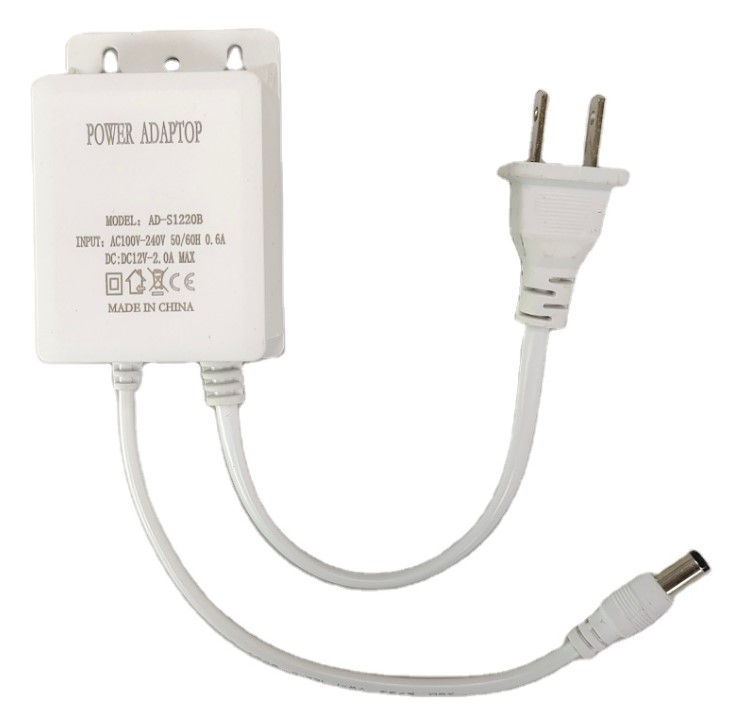
12V DC adapter
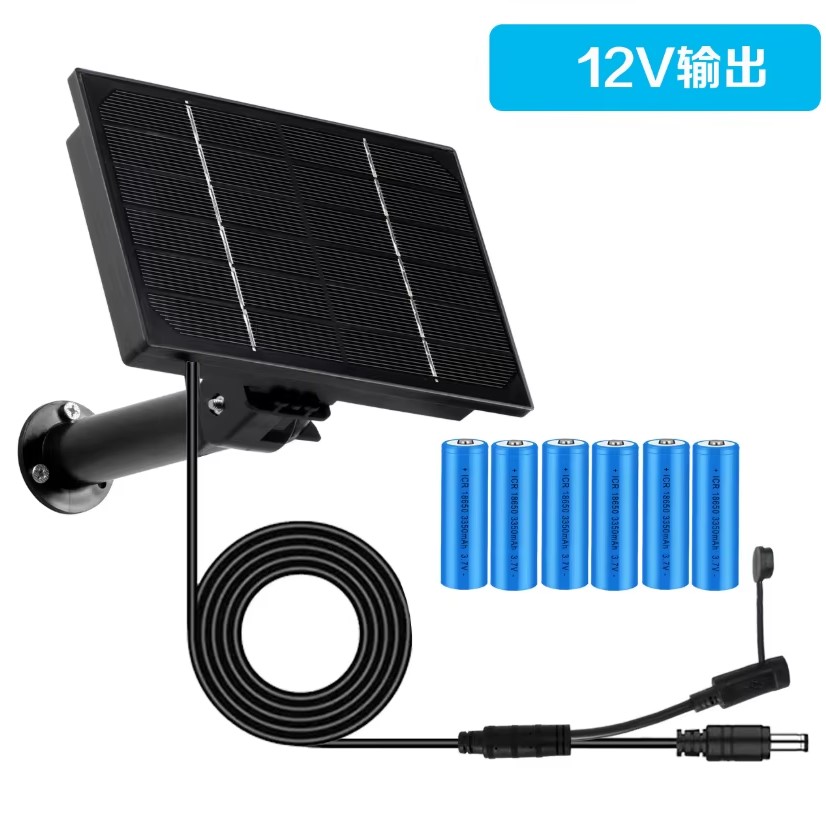
Solar example
Before power-up
M12 connectors are correctly keyed and fully seated.
No exposed or improvised Bus v1 wiring.
Cable support and enclosure entries are secure.
Required sensor adapters are closed and protected.
Sensors are connected to the intended T-distributor drops.
The final M12 120 Ω bus-end terminator is installed.
After the hardware is installed, continue to the Device Setup tab to connect Wi-Fi, link the unit, test readings, configure reporting, and finish setup.
Solar-ready:
Pebble can be powered from a properly sized 12V solar battery system with continuous DC output. Required panel and battery size depends on the Pebble model, connected sensors, available sunlight, and desired days of backup.
Do not select a solar system by panel wattage alone.
The system must include adequate battery storage and must provide continuous power throughout the night and during cloudy weather. Small solar chargers designed only to recharge a camera or phone may not be suitable.
Compatibility specification
Minimum solar-system requirements
Electrical requirements
Nominal 12V DC output suitable for the Pebble power input.
Continuous output 24 hours a day, including overnight operation.
The output must not automatically switch off when the connected load is low.
Automatic restart after low-battery shutdown and solar recharge.
Short-circuit, overcurrent, overcharge, and low-voltage protection.
At least 1A continuous output for Eco 1 or Eco 2; 2A preferred for Plus.
Battery and outdoor requirements
LiFePO4 battery chemistry is preferred for cycle life and outdoor solar use.
Battery capacity must be stated in Ah or Wh at the battery voltage.
Use a weather-resistant enclosure and outdoor-rated cables and connectors.
IP65 minimum is recommended; IP66 or better is preferred.
For cold climates, confirm that battery charging is protected below the permitted charging temperature.
The battery, controller, and panel must be suitable for unattended continuous service.
Starting guidance
Choose a starting size by Pebble model
These values are conservative starting points for systems with good solar exposure. Larger batteries or panels may be required for shading, prolonged cloudy weather, cold climates, or difficult service locations.
Pebble installation
Minimum starting point
Preferred for added reserve
Eco 1
Two included direct-connect ultrasonic sensors
20W panel with 10Ah battery
20–30W panel with 20Ah battery
Eco 2
Up to two RS485 sensors, including supported A01, A02, submersible, analog-interface, or tank-top input combinations
30–40W panel with 15–20Ah battery
40–60W panel with 20–30Ah battery
Pebble Plus — 3 to 4 devices
Mixed supported RS485 monitoring devices
50W panel with 20Ah battery
60W panel with 30Ah battery
Pebble Plus — 5 to 6 devices
Maximum monitoring configuration, including up to one input-only tank-top module
60W panel with 30Ah battery
80W panel with 40Ah battery
Full sun
Use the model-specific starting size when the panel receives unobstructed sunlight for most of the day.
Partial sun
Move to the preferred size or increase one size when trees, walls, roofs, or seasonal shading reduce panel exposure.
Poor or uncertain sun
Obtain a site-specific solar assessment or use mains power. A larger panel cannot always overcome heavy or continuous shade.
Recommended backup target:
Select enough battery capacity for at least five days without useful sunlight. Consider seven days or more where prolonged cloud cover, seasonal shade, storms, or difficult service access are expected.
Before leaving the site:
Confirm the battery is charging, Pebble remains powered when the panel is covered or disconnected, polarity is correct, cable voltage drop is acceptable, and the solar controller automatically restores output after a low-battery condition.
Using an off-the-shelf camera or trail-camera solar system
An integrated camera-style solar panel and battery system may be used when it meets all Pebble compatibility requirements. Confirm the true battery capacity, continuous 12V output, low-load behavior, automatic recovery, outdoor rating, warranty, and replacement availability before installation.
Do not use:
A USB power bank or solar charger that shuts off automatically, provides power only while sunlight is available, has no published battery capacity, or cannot operate the load while charging.
Solar sizing guidance is based on typical monitoring configurations. Site conditions, reporting frequency, sensor selection, cable length, temperature, and battery condition can change the required system size.
Local setup
Device setup flow
These are the on-site setup steps after the hardware has been planned or mounted enough for testing.
Quick setup details
Setup Network
Pebble-xxxxxx
Setup Password
setup1234
Setup Address
http://192.168.4.1
Normal phone warning: Your phone may say the Pebble setup Wi-Fi has no internet. That is normal. Stay connected until the setup step is complete.
What you will see on screen
Login / Home
Start here after connecting to the temporary Pebble setup Wi-Fi.
Link Device
Enter the Link Code from the portal to bind the physical unit.
Connection Setup
Set Wi-Fi, mobile/APN where applicable, and update timing.
Sensor Setup
Choose sensor type, test readings, and save sensor settings.
1
Press and release the Pebble menu button.
Do not hold the button. This opens the temporary setup Wi-Fi.
2
Connect your phone or laptop to Pebble-xxxxxx.
Use the setup password shown above.
3
Open http://192.168.4.1.
If the page does not open automatically, type the address into the browser.
4
Log into the local setup page.
Use the setup access code. setup1234
Open Connection Setup.
Select the site Wi-Fi network.
Enter the site Wi-Fi password and save.
After Pebble joins the site network, open the Wi-Fi Diagnostics / Wi-Fi Meter.
Move the controller or antenna until the signal is acceptable before final mounting.
RSSI guide
-50 to -60 dBm: Excellent
-60 to -70 dBm: Good
-70 to -75 dBm: Acceptable
-75 to -80 dBm: Weak; improve if possible
Below -80 dBm: Unreliable
Pebble can keep its setup Wi-Fi open for the installer while also connecting to the site Wi-Fi in the background. Finish Setup closes the temporary setup Wi-Fi.
Link Device
Use Link Device when linking one physical Pebble Monitor slot to one Monitoring Profile. Enter the Link Code from the portal.
Link All Slots
Use Link All Slots on RS485 Pebble when one physical unit is being linked to up to three Monitoring Profiles. Each slot uses its own Link Code from the portal.
Important: If Link All Slots says internet is required, return to Connection Setup and connect Pebble to the site Wi-Fi first.
Choose the matching quick setup if one applies.
Confirm the sensor type for each reading.
Confirm the physical sensor setup matches the portal Tank Sensor Type.
For ultrasonic sensors, confirm the sensor is mounted above the water and aimed straight down.
For submersible sensors, confirm the correct electrical/RS485 version was selected and connect it through the approved Bus v1 M12 interface or sensor adapter.
If a tank-top switch is used, confirm closed and open states.
RS485 service tools
Use RS485 service tools only when an RS485 device needs address recovery, bus-speed correction, zero-offset correction, diagnostics, or switch-box service.
Use the test button to confirm a live reading appears.
If using eco2, test both Main and Reserve readings.
If a tank-top switch is used, test closed and open states.
If assigning addresses on an RS485 bus, connect only one sensor at a time while doing that step.
For analog installs, confirm the live electrical value and calibration points.
Save settings after all readings and service actions are confirmed.
Send an update when the level changes by: Optional level-change based reporting in addition to normal timing.
Last check-in time for the day: Default is 2350 hours unless changed.
Send updates every hours: Choose how often the device should send updates.
Before leaving the job site, confirm the website has updated with the expected value and timestamp.
Final checks
Wi-Fi Meter is preferably -75 dBm or better.
Monitoring Profile is linked to the correct Main Tank.
Timezone is correct.
Portal sensor type matches physical setup.
Reading appears on the portal with expected timestamp.
All settings are saved.
Finish Setup
Finish Setup closes the temporary Pebble setup Wi-Fi and returns the device to normal runtime mode. Use it only after Wi-Fi, linking, sensor setup, and final checks are complete.
Finish Setup does not generate Link Codes, claim slots, erase Wi-Fi credentials, release hardware, or clear the cloud link.
Commissioning & Customer Handoff
Prove the complete monitoring path before calling the installation finished
Finish Setup is a device runtime action; it is not, by itself, proof that the installation has been commissioned. Commissioning requires evidence that the portal configuration, physical hardware, sensor behavior, device relationship, network path, and reported tank value all agree.
Commissioning acceptance checks
Monitoring Profile, physical site, timezone, Main Tank, optional Reserve Tank, and slot relationships are correct.
Portal Sensor Type matches the physical sensor technology and the required reference values have been entered correctly.
The physical sensor, controller, cable route, M12 trunk, T-distributors, sensor drops/adapters, cable support, antenna, and power arrangement are secure and suitable for the installation.
The device is linked to the intended Monitoring Profile or profiles and has the required network connectivity.
Each required live reading is reasonable, changes in the expected direction, belongs to the intended tank or slot, and appears in the portal with the expected timestamp.
RS485 Sensor Bus v1 installations have unique device addresses, stable communication, correct linear M12 topology, the required far-end M12 120 Ω terminator, and no unresolved intermittent node or power fault.
Tank-top switches or other supported state inputs, when installed, have been tested in both expected states.
All intended settings have been saved and temporary setup mode has been closed with Finish Setup only after the checks above are complete.
Customer handoff
Show the customer which tank or tanks are being monitored and confirm the Tank Status view displays the commissioned relationship.
Identify the installed Pebble model and sensor method, and explain any site-specific service consideration the customer should preserve, such as sensor clearance, cable protection, vent protection, antenna location, or access to the controller.
Record any relevant installed-device, sensor, address, slot, or service information needed for later troubleshooting or maintenance.
If a safety issue, wiring fault, incorrect configuration, unreliable reading, communication problem, or other material defect remains unresolved, document it and tell the customer what must be corrected. Do not represent the installation as commissioned.
Troubleshooting
Fast checks before deeper troubleshooting
Troubleshooting safety boundary: Troubleshooting does not override the installer safety rules. Stop or escalate when diagnosis would require unsafe tank access, unauthorized confined-space entry, unsafe energized electrical work, bypassing a required isolation or protective control, or work outside the installer’s competence or authorization.
A temporary reconnect, plausible one-time reading, or cleared error message does not prove a stable installation. Do not close or commission the job while a material wiring fault, unreliable reading, communication problem, safety issue, or incorrect configuration remains unresolved.
Need professional help?
If you would rather hand off the installation or troubleshooting, find a LumeLevel Certified Installer in your market.
Confirm code is current and from the correct Monitoring Profile.
Regenerate code if expired.
For Plus, confirm the intended slot.
Sensor
Check sensor power and wiring.
Check sensor type in portal and device setup.
For RS485 Sensor Bus v1, check the device address, M12 connector seating, supported bus speed, T/drop topology, sensor adapter, and far-end terminator.
Device screen / LED status
Use the screen message and LED pattern together to decide the next action.
Normal ready state: READY on line 1 and Standby on line 2. During setup, you may see SETUP / 192.168.4.1 or SETUP / WiFi cfg depending on the step.
Screen
Line 2
LED Pattern
Meaning
Installer action
SETUP
192.168.4.1
Slow blink
Device is in setup AP mode.
Connect to setup Wi-Fi and open setup page.
SETUP
WiFi cfg
Slow blink
Device is in Wi-Fi configuration mode.
Finish Wi-Fi setup and save site network details.
WIFI
Connecting
Medium blink
Connecting to Wi-Fi.
Wait. If it does not connect, check Wi-Fi details and signal strength.
WIFI ERR
Check WiFi
Slow blink
Wi-Fi connection failed.
Re-enter Wi-Fi details and try again.
UNBOUND
Claim dev
Slow blink
Device is not linked.
Open Link Device and enter the portal Link Code.
CLAIM
Claiming
Medium blink
Link request in progress.
Wait for completion.
CLAIMOK
Bound
Solid ON
Device link completed successfully.
Continue setup or link another Plus slot if needed.
CODEERR
Regen web
Double blink
Link Code expired or invalid.
Generate a new Link Code in the portal.
CLAIMER
Try again
Double blink
Link failed.
Retry and confirm Link Code and selected slot.
CLOUD
Retry
Double blink + pause
Cloud service could not be reached.
Check internet access, DNS, and firewall / HTTPS access.
API ERR
Retry
Triple blink + pause
Server returned a non-success response.
Retry first, then review backend logs if needed.
BADRESP
Retry
Triple blink + pause
Unexpected server response.
Retry, then verify firmware and backend response format.
RESOLVE
Retry
Double blink + pause
Resolve step failed after network connection.
Retry after confirming Wi-Fi and cloud connectivity.
SENSERR
Check sens
Fast blink
Sensor problem detected.
Check wiring, sensor type, address settings, and power.
TIMEOUT
Retry
Fast blink
Sensor did not respond in time.
Inspect Sensor Bus v1 M12 cabling, connector seating, T-distributors, sensor adapters, and far-end termination.
READY
Standby
Solid ON
Normal ready state.
No action needed.
Moving or re-linking a physical Pebble Monitor
In the portal, open the old Monitoring Profile and choose Release This Slot or Release Entire Pebble Monitor.
On the physical Pebble Monitor, open Clear Cloud Link.
Generate fresh Link Codes for the new Monitoring Profile or devices.
Use Link Device or Link All Slots to bind the physical Pebble Monitor again.
LED pattern guide
Slow blink = about 0.8 second interval
Medium blink = about 0.35 second interval
Fast blink = about 0.12 second interval
Solid ON = normal ready state
Double blink = grouped pair of flashes
Triple blink + pause = grouped triple flashes followed by a pause
Hardware move note: Use Release This Slot to move one tank, replace one channel, or free one Pebble Plus slot. Use Release Entire Pebble Monitor only when replacing, moving, or retiring the whole physical Pebble Monitor board.
Tank setup takes just a few simple steps. Sensor installation depends on the sensor and tank you choose.
Loading video...
Cookies & tracking
We use essential site technology and privacy-preserving aggregate page counts. With your permission, we can also measure campaigns and use advertising or analytics tools.